
VISION · Photo tools
AIImage Studio
Change the background, outfit or light of a photo, or expand it into a new shape — while keeping the person recognisably you.
- Where
- iPhone, iPad and Android apps
- Cost
- 12 credits per image
- Lane
- VISION · Images, Video & Editing

Step by step
How to change the background, outfit or lighting of a photo with AI
- Open Image Studio and tap Choose a photo.
- Pick a mode: Background, Outfit, Light or Expand (Portrait 2:3, Landscape 3:2 or Square 1:1).
- Describe the change in the Prompt and keep Preserve identity on.
- Tap Generate image, then save or share the result.
Good to know
- Runs on OpenAI image editing after you allow it once.
- AI can drift on faces; compare with your original before you publish.
Questions people ask
How do I change the background, outfit or lighting of a photo with AI?
1. Open Image Studio and tap Choose a photo. 2. Pick a mode: Background, Outfit, Light or Expand (Portrait 2:3, Landscape 3:2 or Square 1:1). 3. Describe the change in the Prompt and keep Preserve identity on. 4. Tap Generate image, then save or share the result.
Is Image Studio free?
Image Studio uses AI, so it spends credits from your monthly budget: 12 credits per image. Every plan has a budget, Foundation (free) included; the Studio shows what is left before you start, and a failed job never spends credits.
Where can I use Image Studio?
iPhone, iPad and Android apps. It is in the V3EDGE app.
Works well with
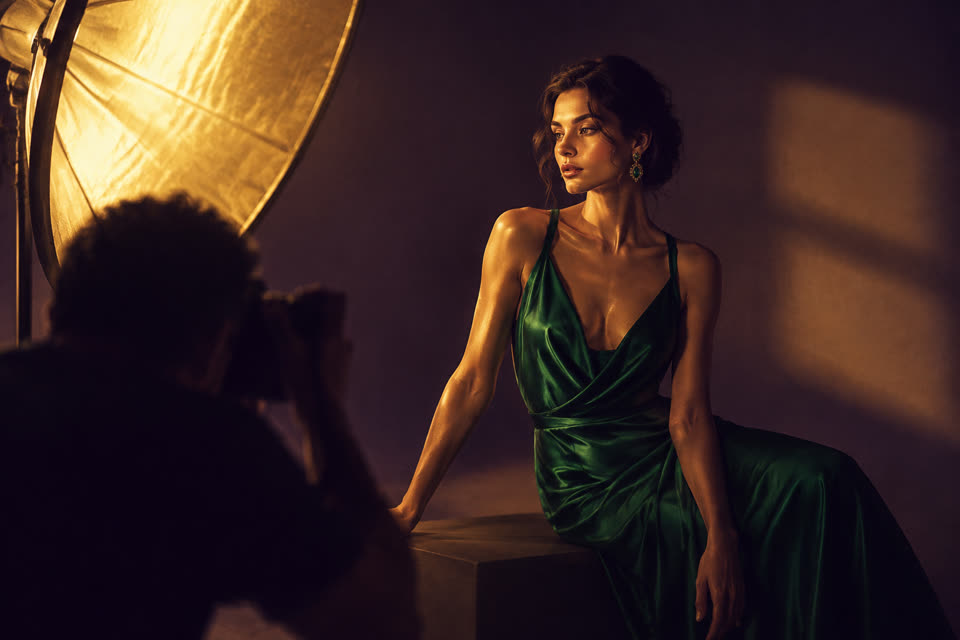
AI Photoshoot
Studio-quality photos of you from a few selfies
AI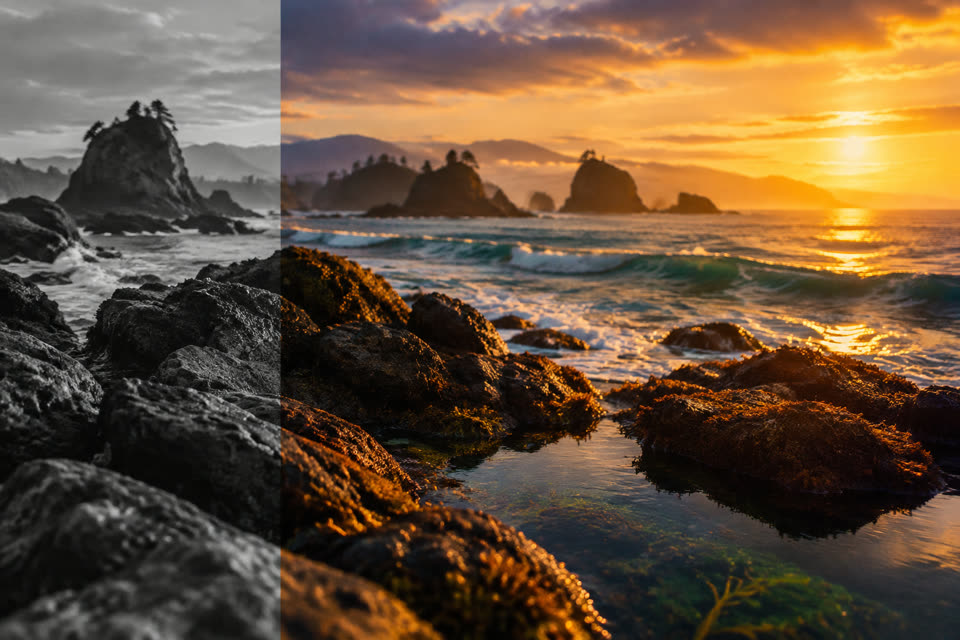
Photo Cut-out
Remove a photo's background in one tap
AI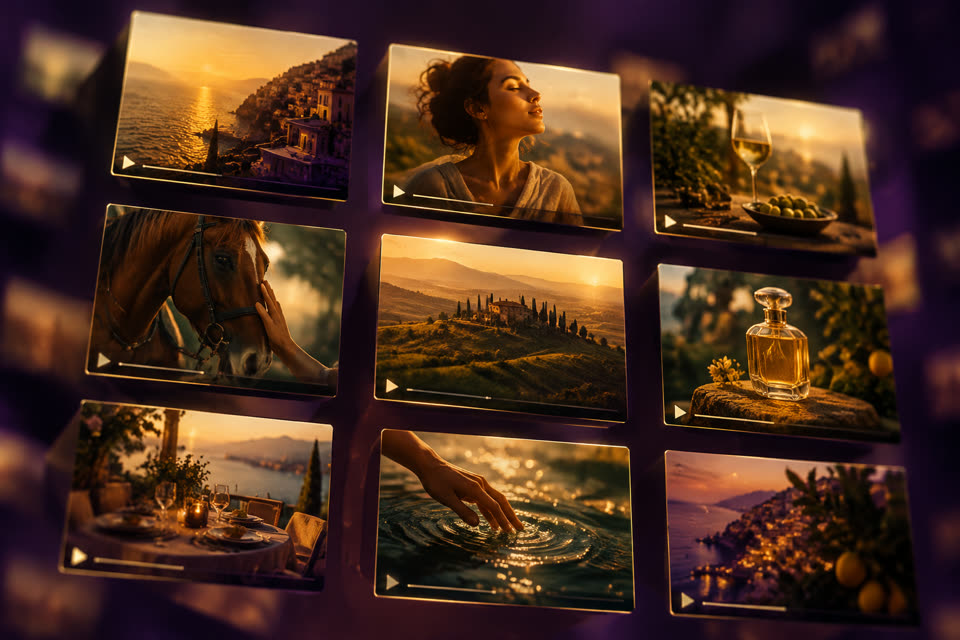
Thumbnails
Click-worthy YouTube and cover thumbnails

Photo Enlarge
Enlarge a photo 2× or 4×, up to 7680 px on the long edge
Also searched as: ai photo editor · image studio · change photo background with ai · ai outfit change in a photo · expand a photo with ai